Device shows “storage full” during a stock count? Or slows down right when the line gets busy?
These issues often come from storage devices—the wrong type, the wrong size, or no clear setup. This guide gives you the essentials: what storage devices do, why they matter today, which types are used in mobile computers and Android barcode scanners, how much storage different workflows need, plus simple security steps and a quick pros-and-cons summary. All explained in short, clear points, and grounded in real use cases from Tera-style industrial handhelds.
A storage device is hardware that saves digital data and keeps it even when the power is off. It stores the files, apps, and records your device needs to run every day.
Common types include:
• Hard disk drives (HDD)
• Solid state drives (SSD)
• Flash storage
• Memory cards
In simple terms, a storage device is where your important information lives, whether you use a computer, a mobile computer, or an Android barcode scanner.
You now know what a storage device is. The next question is simple: why does it matter so much today for your everyday work and your devices?
Why Storage Devices Matter More Than Ever
Storage devices matter more than ever because the way you work with data has completely changed. You are no longer dealing with a few files on one office computer. Today your team has mobile computers, Android barcode scanners, cloud systems, and constant data moving in and out.
First, you handle more data than before. One shift in a warehouse or store can create thousands of scans, orders, and log records. All of this needs a safe place to live. Without enough storage, or with weak storage, useful data can be lost or never captured at all.
Second, many workflows now depend on mobile devices. Your mobile computer or Android barcode scanner is not just a scanner. It runs apps, stores tasks, keeps offline forms, and holds business rules. If the storage fails, the device may still turn on, but your work cannot continue.
Third, offline work is normal. Wi-Fi or cellular coverage is not perfect on the shop floor, in the back room, or inside a container yard. In those moments, on-device storage is what keeps your scans and tasks safe until the network comes back.
Finally, storage affects speed and user experience. Faster storage helps apps open quickly, lets you move between screens smoothly, and speeds up data sync. Slow storage can make a device feel old even if the processor is new.
Now that you know why storage matters so much, the next step is to understand the main types of storage devices you will see today.
Types of Storage Devices (With Clear Examples)
Storage devices come in different forms, and you already see many of them in daily life. Some live inside your device. Some are small parts you can hold in your hand. Some live in the cloud, far away in a data center.
Primary Storage (RAM)
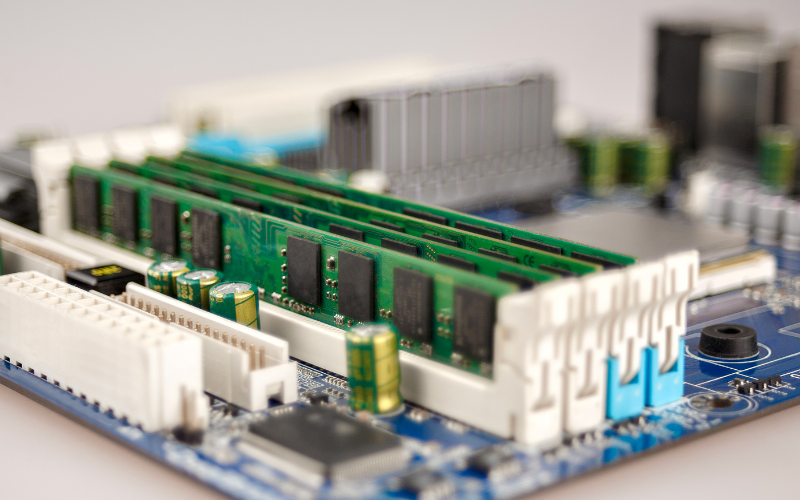
Primary storage usually means RAM, or Random Access Memory. RAM is a small chip soldered onto the main board inside your device. You do not remove it. It helps the device “think” and work on tasks right now.
RAM is fast but temporary. When you turn the power off, RAM is cleared. In a mobile computer or barcode scanner, RAM affects how many apps you can keep open and how smooth the device feels when you switch between screens.
Secondary Storage (Permanent Storage)
Secondary storage is where your data stays when the power is off. Your system, apps, and records are kept here.
Magnetic storage
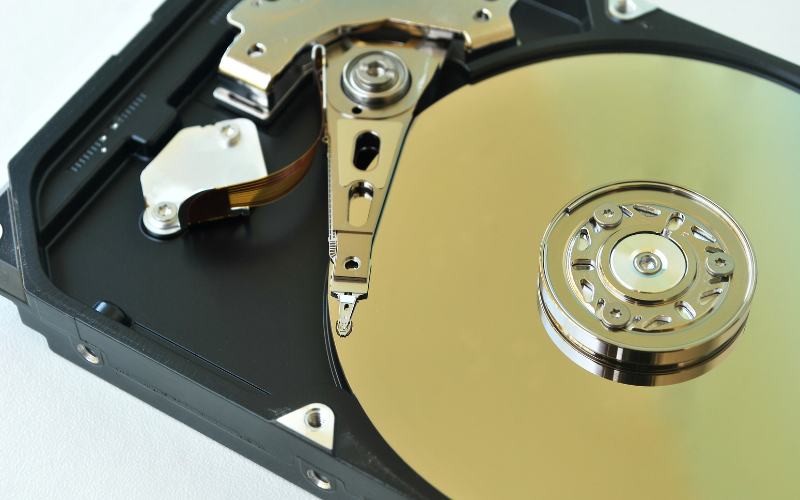
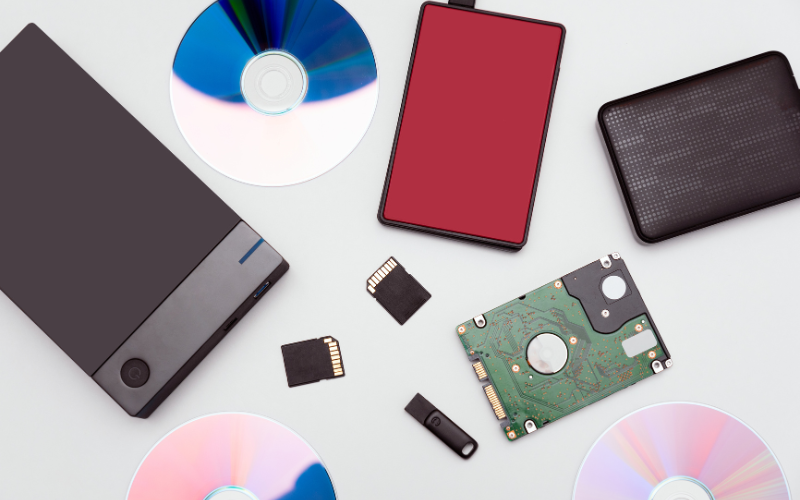
Magnetic storage includes hard disk drives (HDDs) and magnetic tape. An HDD is a small metal box with a spinning disk inside. You usually find it in older laptops, desktops, or servers, not in handheld devices.
Magnetic storage can hold a lot of data at a lower cost, but it has moving parts. This makes it slower and more fragile if the device is dropped. Because of this, magnetic drives are not used inside mobile computers or barcode scanners that work on the warehouse floor.
Optical storage
Optical storage includes CDs, DVDs, and Blu-ray discs. You see them as flat, shiny discs that go into a tray or slot on a computer or player.
They are sometimes used for long term archiving or older systems. In modern mobile workflows, optical storage is almost never part of the setup, so most field users never touch it.
Flash storage
Flash storage is solid state and has no moving parts. It is the standard choice in phones, tablets, and mobile computers.
Inside a device, you often see eMMC or UFS flash chips. These are small, flat chips fixed to the main board, not user-removable. eMMC offers basic speed and is common in entry level devices. UFS 2.1, 3.0, or 3.1 is faster and widely used in Android devices, including many mobile computers and scanners. Faster flash helps apps open quickly and lets scan data save in the background.
You may also hear about SSD (solid state drive). An SSD is a larger flash drive used in laptops and desktops. It is very fast but not typical inside small handheld scanners.
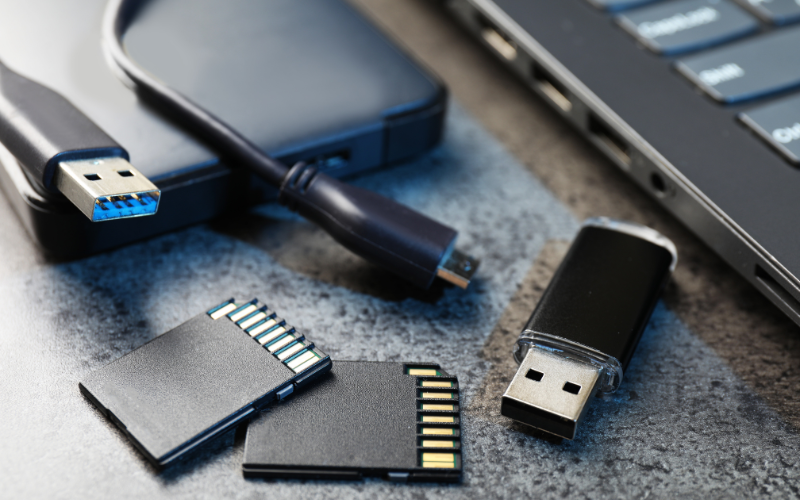
For removable flash, there are USB flash drives and SD or microSD cards. A USB stick plugs into a USB port. An SD or microSD card is a tiny plastic card that slides into a slot. They can add extra space or move files between systems, but because they are easy to remove or lose, they need clear handling rules and backup plans.

Cloud and Virtual Storage
Cloud storage is storage you cannot see inside the device. Your data is kept on remote servers in a data center, and you reach it over the internet. Services such as Dropbox, AWS, or Google Cloud use this model.
For mobile computers and Android barcode scanners, cloud storage is often the central home for scan data and reports. The device first saves data to local flash storage, then syncs it to the cloud when the network is available. This way, many devices and sites can share the same up-to-date information.
So you know what each storage type looks like and where it usually lives. But how do they actually support every scan, every task, and every sync on your devices?
How Storage Devices Work Inside Mobile Computers & Android Barcode Scanners
Inside a mobile computer or Android barcode scanner, storage is part of every scan, every task, and every upload. It works quietly in the background while your team moves goods, checks stock, or tracks orders.
Internal Flash Storage
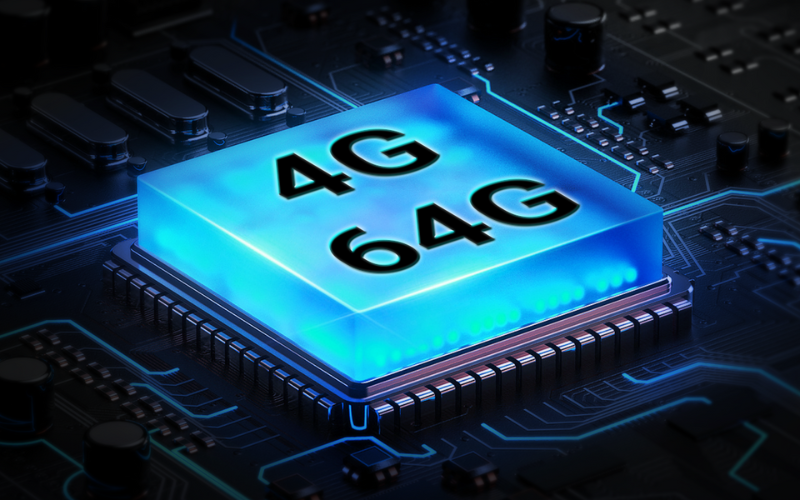
Internal flash is the built-in storage where the device keeps the system, apps, and local scan records. It sits on the main board as a fixed chip. You do not remove it, but you feel its speed in daily use.
Different devices use different RAM and flash setups. For example, a handheld like the P166GC runs 3 GB RAM with 32 GB internal flash, while a device such as the P400 uses 4 GB RAM with 64 GB flash. These combinations affect how fast apps open, how quickly lists load, and how smoothly the device writes new scans during busy shifts.
Many Android industrial handhelds use eMMC or UFS-class flash. UFS handles small, repeated writes more quickly, which matters when a scanner captures hundreds or thousands of records in a single day. This workload is common in warehouses and retail back rooms, where the device constantly writes new scan data to local storage.
Because this flash is written to all day, its durability and I/O performance matter more than on a casual consumer phone, which often writes far less data.
Expandable Storage (microSD)
Many handhelds, including models like the P166GC and P400, support up to 256 GB microSD cards. A microSD card is a tiny removable card that adds extra storage space and is often used for:
- full-day offline inventory counts
- large batches of scan logs
- photo records of damaged goods or deliveries
During long shifts, the device writes new scan results into memory and then saves them to the card. If the card is slow, the buffer fills up, and the user may notice small pauses when saving big batches.
Because a microSD card can be removed, businesses often set rules for who can access it and how often its contents are backed up. This keeps data from being lost or misplaced.
Data Capture → Local Storage → Cloud Sync
Every scan follows the same simple path, no matter which scanner engine the device uses.
On a model like the P166GC, the Zebra SE4710 engine can read damaged or low-quality barcodes at high speed. On the P400, the HS7 engine does the same for fast conveyor workflows. Both engines can produce a steady stream of decoded data, and storage must keep up.
Here is how the device handles it:
- The scan engine decodes the barcode and sends the result to the app.
- The app writes the record into local storage, usually into a small on-device database. This happens even when the Wi-Fi signal is weak.
- When the network is stable, the device syncs to the cloud. A model like the P166GC can use WiFi 6 to upload logs faster, while the P400 can send data over 4G when the site has no Wi-Fi at all.
Across warehouses or stores, many devices repeat this pattern, so your central system always has an updated view of stock and activity.
Why Industrial Handhelds Need Stronger Storage Reliability
Industrial handhelds face conditions that normal phones rarely see. For example, the P166GC is rated IP65, and the P400 is rated IP67, meaning they must work in dust, moisture, and sudden temperature changes. Both survive repeated 1.8-meter drops and operate from -4°F to 122°F.
Storage must survive the same conditions. A drop or a sudden battery pull can interrupt a write operation. To avoid broken files or missing records, industrial devices rely on stronger flash designs and better write protection, so the last record still saves even when power cuts at the wrong moment.
This reduces lost scans, repeated work, and gaps in inventory history during busy warehouse operations.
Now the question becomes: which storage type fits your work best—internal or external?
Internal vs External Storage Devices: Which One Do You Need?
Choosing storage is really about choosing how your work should behave. Some data must stay close to the device all the time. Other data only needs a safe place to live or a simple way to move between systems.
Internal Storage
Internal storage is the right place for work that cannot stop. This includes live scanning, real time inventory checks, picking tasks, and orders that are still in progress. When a worker scans a shelf or a pallet, the first safe copy of that record should be written inside the device.
Internal storage is better when the task must be fast, the data must be ready even with no card or USB plugged in, and your team cannot risk someone removing the storage by mistake.
If a job would break the workflow when data goes missing, it belongs on internal storage.
External Storage
External storage is the smart choice for data that you keep or move, not data that drives each step. USB drives and microSD cards work well for: long term history of scan logs, photo proof and reports, data handover between teams or systems.
If a file is large, does not change often, or needs to travel, external storage can carry that load without filling the device.
Simple Work Based Comparison
Here is one way to think about both options when you plan your setup.
Work scenario |
Internal storage |
External storage |
|---|---|---|
Live scanning during the shift |
Best fit |
Not recommended |
Offline tasks for the next few days |
Safe base option |
Useful as extra room |
Long term record keeping |
Limited by device size |
Best fit |
Moving files between sites or teams |
Not ideal |
Best fit |
Data that must never be removed |
Should stay inside the device |
Too easy to remove or lose |
If the work is critical, fast, or hard to redo, keep it inside. If the work is mainly storage, history, or transfer, external storage can support it.
Now that you know how each type fits your workflow, the next question is simple: how much storage do you actually need for your daily scanning work?
How Much Storage Do You Need for Inventory & Barcode Scanning Workflows?
Storage is the room on your device for apps, scan records, tasks, photos, and logs. The “right” size depends on how you work, not just on a spec number.
A simple way to think about it is this:
More scans × more days on the device × richer data (like photos) = more storage needed.
Below are practical ranges, with real retail, warehouse, and logistics scenes, plus examples from devices like Tera P166GC (32 GB storage) and Tera P400 (64 GB storage).
Small retail stores
Small retail stores usually run one or two key apps and do simple barcode scans at the shelf or at the counter. They rarely keep months of history on the device and often sync to the cloud daily.
In this case, 16 GB to 32 GB of storage per device is usually enough. This covers:
- The Android system and main inventory or POS app
- Product and price files
- A few days of scan records and small logs
A device in the 32 GB class, like the P166GC, fits this type of store well when scans are text only and photos are not part of the workflow. If the store clears old data regularly and keeps most history in the back end system, it usually does not need more than that.
Medium warehouses
Medium warehouses handle more SKUs, more locations, and more offline work. Devices may store larger local item databases, pick lists, put away tasks, and several days of scans when Wi-Fi is weak in some areas.
Here, 32 GB to 64 GB of storage per device is a better target. This allows the device to:
- Hold a large on-device inventory file
- Cache work orders and tasks for multiple shifts
- Keep scan logs for several days before archive
In practice, you often see both sizes: a 32 GB handheld (like P166GC) can support lighter warehouse work, while a 64 GB model (like P400) gives more headroom when tasks are heavier or offline windows are longer. Choosing 64 GB reduces how often you need to clean up data during busy periods.
Large logistics centers
Large logistics centers and 3PL operations often collect more than just a barcode number. They may attach photos, signatures, and exception notes to each stop or pallet.
For this kind of work, 64 GB to 128 GB of storage per device is usually more realistic. Typical on-device content includes:
- High volume scan streams for inbound and outbound
- Proof of delivery photos and dock photos
- Driver or receiver signatures
- Detailed logs kept for audits or customer reports
A device in the 64 GB range, like the P400, can handle this for many teams if data is synced and old content is moved off the device on a regular schedule. If you keep rich records on the device for months at a time, planning for higher storage tiers such as 128 GB becomes safer.
Factors to consider
On top of company size, a few simple factors will push you toward the lower or higher end of each range.
Daily scan volume: If a device scans only a few hundred items per day, storage grows slowly and lower sizes (16–32 GB for small sites, 32–64 GB for larger ones) are often enough. If one device scans several thousand items per shift and you keep that data locally for weeks, you should lean toward the higher numbers, such as 64 GB instead of 32 GB.
Use of photos or rich media: Plain text scans are very small. A single photo or image note can use as much space as hundreds of scans. If your workflows add pictures for damage checks, quality control, or proof of delivery, storage needs rise quickly. A warehouse that was fine with 32 GB for text only might need 64 GB once photos become part of every job.
Offline time and cached tasks: Devices that stay online most of the time can send data to the server right away and keep only a thin local history. Devices that work offline for many hours or days must keep pick lists, routes, and work orders on the device until they sync. The longer you expect the device to work without a network, the more storage you should plan for.
Retention period on the device: If you keep only a few days of data locally and then archive or clear it, you can choose smaller storage sizes within each band. If your policy is to keep 30, 60 or 90 days of history on the device, that same operation now needs more space. Long retention plus high scan volume is a clear signal to choose the top end of each range.
Putting it all together, you can use a simple rule:
- Light use, text only, short history → lower end of the range
- Heavy use, photos or signatures, long history or offline time → higher end of the range
This way, storage is sized to match real inventory and scanning work, not just a number on a datasheet.
Once you decide how much storage each device needs, the next question is simple: how do you keep that stored data safe on every mobile scanner?
Security Best Practices for Storage Devices in Mobile Scanning Devices
Mobile scanning devices move through busy spaces all day. They are shared, carried, dropped, and sometimes taken off site. Because of this, the data stored inside needs more than enough space—it needs strong protection. The practices below help keep your scan records safe no matter where the device goes.
Encrypt local storage
Encryption protects your data even if the device is lost or taken apart. With encryption turned on, the information saved on the device becomes unreadable without the proper password or key. This matters in real warehouse and retail work, where a device can be left on a forklift, forgotten in a truck, or borrowed by someone outside your team.
Modern Android devices, including industrial models like Tera P166GC and P400, support full-device encryption by default. It runs quietly in the background and does not slow down your scanning work, but it adds a powerful layer of safety.
Role-based access
Role-based access makes sure each worker only sees and edits the data they truly need. In a store or warehouse, different people do different jobs. A picker needs task lists. A supervisor needs reports. IT needs settings. Without role-based control, it is easy for someone to delete a task by mistake or open data they should not see.
Most WMS and inventory apps used on devices like Tera handhelds already support role-based access. Setting clear roles reduces errors and keeps sensitive information where it belongs.
Remote wipe and MDM integration
Remote wipe protects your data when the device is in a place you can’t control. If a scanner is lost, taken home accidentally, or not returned by a temporary worker, an MDM (Mobile Device Management) tool allows your team to lock it, wipe it, or block changes from anywhere.
MDM systems commonly used with Android industrial devices can also push updates, limit app installs, track device status, and enforce security rules. This is especially useful in warehouses and logistics centers where devices travel across large areas and change hands often.
Regular cloud backup
Cloud backup keeps your history safe even if the device breaks, gets dropped, or runs out of battery. In busy operations, devices can fall from loading docks, be exposed to dust or moisture, or shut down during a long shift. When data is stored only on the device, these moments can cause loss.
Regular cloud backup fixes this. Devices like Tera P166GC (Wi-Fi 6) or Tera P400 (4G + Wi-Fi) can upload scan records, photos, and logs whenever the network is stable. Even if the device is replaced or repaired, your data remains available in the cloud.
With these practices in place, your stored data stays safe from daily risks and unexpected problems.
Once your data is safe, it also helps to remember that every storage option has its own strengths and trade-offs.
Storage Devices: Pros and Cons (Simple Summary)
Aspect |
Pros |
Cons |
|---|---|---|
Data retention |
Keeps data when power is off |
Can fill up if never cleaned |
Offline work |
Lets you scan without network |
Data may be delayed before sync |
Performance |
Fast SSD/UFS saves and loads quickly |
Slow or cheap storage can lag or fail |
External storage |
microSD/USB add extra space |
Cards can be removed, lost, or damaged |
In short, storage devices make your mobile scanners more useful: they keep data safe across reboots, support offline work, and can speed up everyday tasks.
At the same time, they are not “set and forget.” You still need good habits: plan enough space, clear old data on a schedule, use reliable cards, and sync to the cloud so important records do not live on one device forever.
FAQs
What storage is better for business devices, SSD or HDD?
For most barcode scanners and mobile computers, SSD-class flash storage is better than HDD. SSD or UFS-type flash has no moving parts, so it is faster and more resistant to shock and drops. HDD uses spinning disks, which do not like vibration and are rarely used in handheld devices today.
Can cloud storage replace on-device storage in mobile scanners?
No. Cloud storage can support your work, but it cannot fully replace on-device storage. Your scanner or mobile computer still needs local storage to hold scans and tasks while the network is weak or offline. The cloud is best used as the central place to collect and back up data from many devices.
Is external storage (like microSD or USB) safe for barcode data?
External storage is useful, but it should not be the only place you keep important data. microSD and USB drives can add space and help with export, yet they can also be removed, lost, or damaged. Key scan records should be written to internal storage first, then backed up or copied to external media if needed.
How much free space should I keep on each device?
It is safer to keep at least 10–20% of storage free on each device. When storage is almost full, apps can slow down, updates may fail, and logs might not save correctly. Leaving some free space gives room for temporary files, updates, and short spikes in scan volume.
How often should I back up data from mobile scanning devices?
Most teams should back up at least once per day, and more often in high-volume sites. If a device is dropped, lost, or damaged before backup, that day’s work can be hard or impossible to repeat. Regular cloud sync or scheduled exports reduce the risk of losing full shifts of scan data.
What should I look at when choosing storage for a new barcode scanner or mobile computer?
Check three things: storage size, storage type, and how your system handles backup. Size should match your scan volume and how long you keep data on the device. Type should be flash-based (SSD or UFS-class internal storage) for speed and durability. Your IT setup should also include a clear plan for syncing data to the cloud or server so it does not live on the device forever.
Conclusion: Choosing the Right Storage Device for Your Business
There is no single “best” storage size or type for every company. The right choice depends on your industry, your workflows, and how your team really uses data: simple retail scans, multi-day warehouse tasks, or rich logistics records with photos and signatures.
When you choose a mobile computer or Android barcode scanner, storage should sit next to the scanner engine, battery, and wireless options as a key parameter. Look at storage type, size, and how data is protected and backed up, not just the total GB on the datasheet.
If your work relies on Android handhelds like those Tera builds for retail, warehouse, and logistics use, the same rule applies: start from your workflows, then pick storage that can support them safely and reliably over time.