Barcode scanner compatibility—why does it always fail when everything looks connected? You scan the code, hear a beep, but nothing appears. It’s frustrating—and common. From retail counters to warehouses, small setup mismatches often stop scanners from working with Android, iOS, or POS systems. The good news? Most scanners aren’t broken—they just don’t speak the same “language.”
This guide shows you how to fix that—how to check, connect, and test your Android barcode scanner or mobile computer, understand 1D vs 2D compatibility, and ensure smooth use with POS apps like Square and Shopify.
What Does Barcode Scanner Compatibility Mean?
Barcode scanner compatibility means your scanner can talk to your device or software without problems. When a scanner and a system understand each other’s signals, the data moves smoothly. If they don’t “speak the same language,” the scan fails or nothing shows up on your screen. Compatibility is what makes the barcode reader actually useful in daily work.
For example, when you connect a Bluetooth barcode scanner to your Android tablet and it instantly reads and sends the code to your app, that’s compatibility in action. But if the same scanner cannot pair with your iPhone or your POS software says “device not recognized,” that’s an incompatibility. It doesn’t mean the scanner is bad—it just means the systems use different rules for communication.
Three main things decide whether your barcode scanner is compatible:
- Operating system (OS) — like Android, iOS, or Windows.
- Connection type — such as USB cable, Bluetooth, or 2.4G wireless.
- Software or app support — some apps need special drivers or SDKs.
When all three match, your scanner works the way you expect. That’s the simple truth behind barcode scanner compatibility.
Compatibility sounds simple, but not every barcode scanner works with every device. That’s where the real questions begin.
Are All Barcode Scanners Compatible with Every Device?
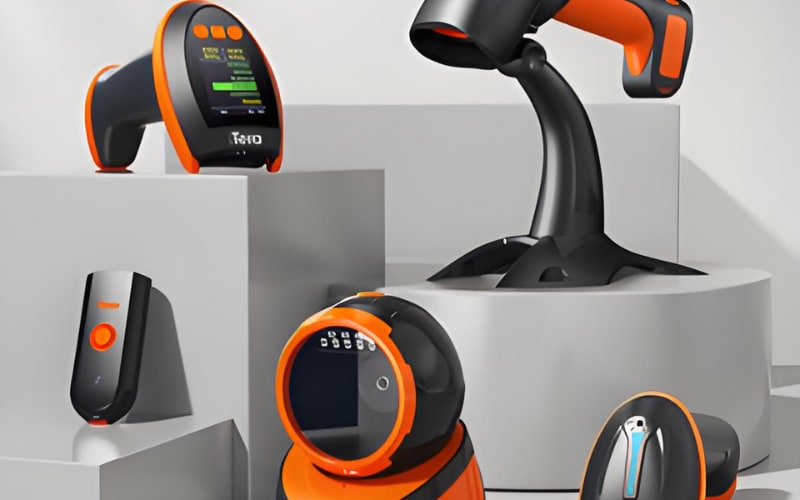
No, barcode scanners are not universally compatible. Each system—Android, iOS, or Windows—handles scanners differently. When the operating system and the scanner use different connection modes, such as Bluetooth HID or USB, data can fail to transfer even if the device appears connected.
Most Android and Windows systems accept Bluetooth HID or USB scanners right away. iOS, however, often needs MFi-certified models to connect properly. Older POS systems may only read wired USB scanners and ignore wireless ones.
Common Compatibility Differences
System |
Connection Type |
Common Issue |
Android |
Bluetooth HID / USB |
Works with most models |
iOS |
MFi-certified Bluetooth |
Non-certified devices not recognized |
Windows |
USB / Bluetooth HID |
May need driver updates |
Even two scanners that look identical can behave differently because of firmware or mode settings. If your friend’s scanner works on Shopify but yours doesn’t, it’s not bad luck—it’s just system compatibility. To avoid issues, always check supported modes before connecting or buying.
How to Check If a Barcode Scanner Is Compatible with Your System
You can check compatibility in just a few simple steps. It doesn’t take special tools—just a little time to make sure your scanner and device “speak the same language.” This quick check helps prevent setup errors and saves you from buying the wrong model.
Compatibility depends on three key factors: your device’s operating system, the scanner’s connection type, and the software or app you plan to use. If all three match, your barcode scanner will usually work right away. Here’s how to check:
Step 1: Check your device system.
Find out what system you’re using—Android, iOS, Windows, macOS, or Linux. Some scanners work better with Android or Windows because these systems support Bluetooth HID and USB drivers more freely.
Step 2: Confirm the scanner’s supported connection modes.
Look at the product manual or label. Most scanners today offer 3-in-1 connections (Bluetooth, 2.4G, and USB). For example, Tera 1600 and 8300Pro scanners support all three, which means they can pair with phones, tablets, and computers easily.
Step 3: Test the connection.
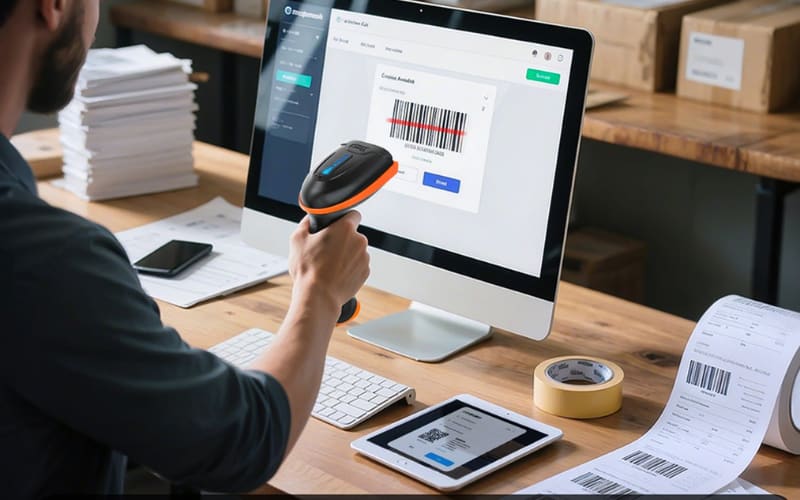
Plug in the USB cable or pair through Bluetooth, then open a text box or app that accepts barcode input. If the code appears clearly after scanning, your scanner and device are compatible. Some mobile scanners, like Tera P400 or P161, run on Android and include built-in testing apps to help you verify communication.
Step 4: Review the manufacturer’s specs.
Most brands provide online manuals with setup barcodes or testing tools. For instance, Tera models include quick setup codes that let you switch between HID or storage mode to confirm connection quality.
Once you’ve confirmed compatibility, the next step is to connect your scanner properly and make it work smoothly with your device.
What’s the Difference Between 1D and 2D Barcode Scanner Compatibility?
Before you connect your scanner, it helps to know the difference between 1D and 2D barcode scanners.
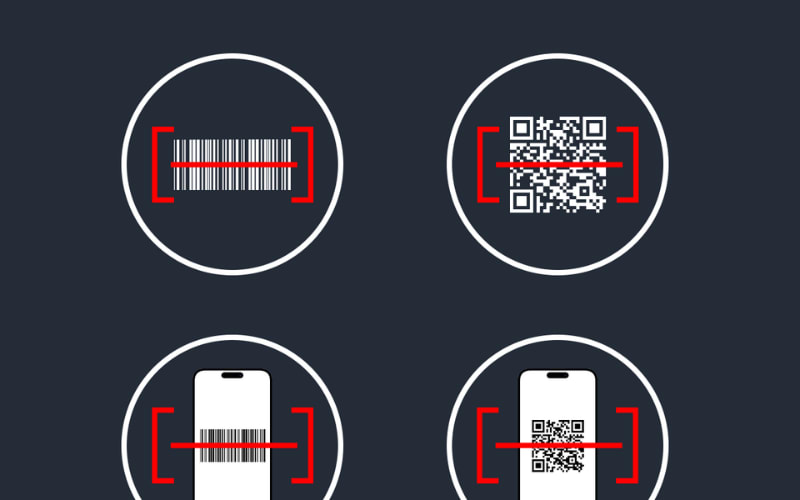
1D scanners read simple barcodes made of vertical lines, like what you see on grocery items.
2D scanners read square or dot-pattern codes, such as QR or Data Matrix, which can store much more information.
Their compatibility depends on what kind of codes your system or software needs to read.
A 1D barcode scanner usually works best for standard retail or warehouse systems that read printed line barcodes. These scanners often use a laser sensor and may not read barcodes shown on phone or tablet screens.
A 2D barcode scanner, on the other hand, uses a CMOS imaging sensor, allowing it to read both printed and digital codes—even ones that are small, curved, or slightly damaged. For example, the Tera 1600 2D scanner easily reads QR codes on screens, which makes it more compatible with mobile payment or app-based systems.
Feature |
1D Barcode Scanner |
2D Barcode Scanner |
Barcode Types |
Simple lines (UPC, EAN, Code 39) |
Complex patterns (QR, Data Matrix, PDF417) |
Screen Reading |
Usually no |
Yes |
Typical Use |
POS, warehouse, logistics |
Retail apps, healthcare, ticketing |
Connection Types |
USB, 2.4G wireless |
USB, Bluetooth, 2.4G wireless |
Compatibility Range |
Narrow |
Broader |
If your business uses QR codes, smartphone displays, or advanced tracking systems, a 2D scanner ensures wider compatibility.
And once you understand which type fits your setup, the next step is to connect your scanner correctly so it works smoothly with your device.
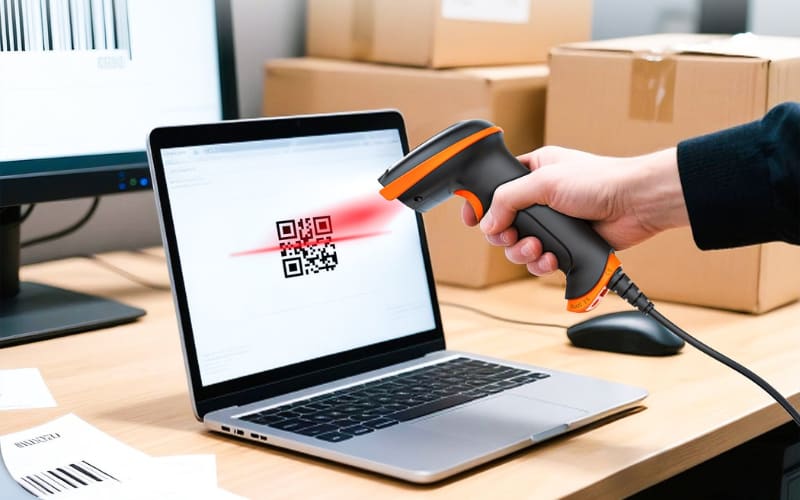
How to Connect a Barcode Scanner to Your Device and Ensure Compatibility
You can connect your barcode scanner to your phone, tablet, or computer in a few quick steps.
Most scanners today work through Bluetooth, USB, or 2.4G wireless. The method you choose depends on your device and where you use it. Connecting properly is the final step to confirm compatibility.
To connect with Bluetooth:
- Turn on your scanner and switch it to Bluetooth mode. Many scanners show this with a blue light or screen icon.
- Open Bluetooth settings on your device and look for the scanner name.
- Select and pair. Some models may ask for a code—just enter “0000” or “1234” if needed.
- Test the connection by opening a text box and scanning any barcode. If the code appears, the pairing is successful.
Bluetooth is the most common setup for mobile devices. For example, Tera 1600 and Tera 8300Pro scanners both support Bluetooth HID mode, letting them connect to Android tablets, Windows PCs, or iPads easily.
To connect with USB or 2.4G wireless: Plug the scanner into your computer’s USB port or insert the 2.4G dongle into the receiver slot. Most devices recognize it instantly—no extra software needed. If the scanner types numbers into your screen after scanning, it’s working correctly.
Once your scanner connects and sends data smoothly, compatibility is confirmed. But what if your device still doesn’t read barcodes even after connecting? In the next section, we’ll look at the most common reasons and how to fix them.
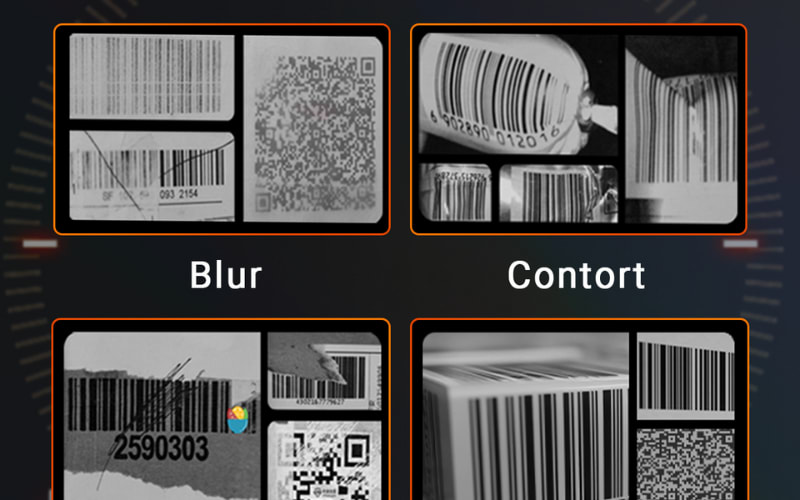
Why Does My Barcode Scanner Stop Working on Some Devices?
If your barcode scanner connects but doesn’t read, the problem is usually compatibility—not hardware failure. Most scanners work fine, but system or mode mismatches stop data from going through.
1. System differences. Android, iOS, and Windows handle scanners in different ways.
Android supports most Bluetooth HID and USB scanners. iOS often needs MFi-certified devices, while Windows may require driver updates. When these systems don’t share the same setup, the scanner pairs but sends no data.
Tip: Always confirm your scanner’s supported systems before use.
2. Connection or mode conflicts. Scanners communicate through HID (keyboard) or SPP (serial) modes. If your phone supports only one, scanning will fail. 2.4G wireless models also need to stay linked to their paired USB dongle.
Fix: Re-scan the setup barcode in your manual to switch modes.
3. Software compatibility. Some apps accept only keyboard-style input. If your POS or custom software doesn’t, your scanner can’t send data—even when connected. Developers using Android mobile computers, such as the Tera P161, can use SDK tools for full integration.
In short, most scanner issues come from mismatched systems or modes, not bad hardware. Once you align your device, mode, and app, scanning becomes smooth again.
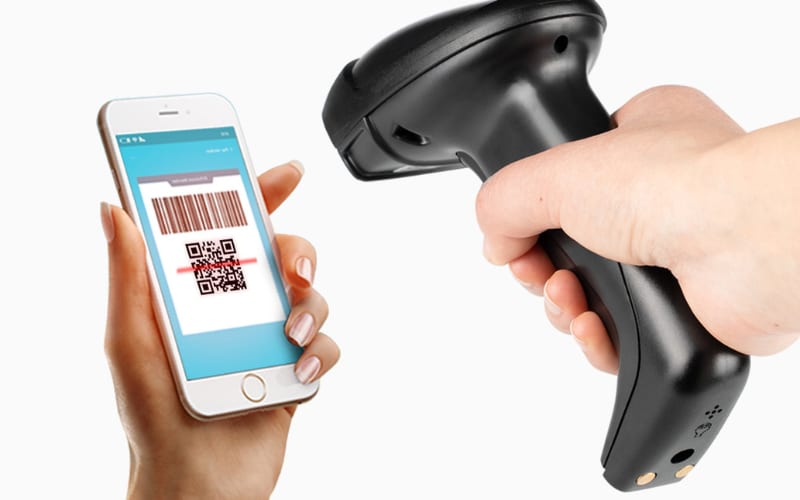
Can a Barcode Scanner Work with POS Systems Like Square or Shopify?
Yes, barcode scanners can work with POS systems like Square or Shopify—but only if they use the right connection mode.
Each POS app accepts scanner input in a specific way. Most read barcode data as if it were typed from a keyboard. That means your scanner must send data through the correct protocol, such as Bluetooth HID or USB keyboard mode.
Square POS supports only a small group of certified scanners that use Bluetooth HID mode. If your scanner connects in another mode, like SPP or USB serial, Square will show “device not supported.” This is not a hardware issue—it’s simply how Square’s app limits connections for stability and security. iPads and iPhones that run Square often require MFi-certified Bluetooth scanners to work correctly.
Shopify POS, in contrast, is more flexible. It supports both USB and Bluetooth scanners on most tablets, and can also recognize 2.4G wireless models when connected through a USB dongle. Still, the app must detect the scanner as a keyboard-type input before it can receive barcode data.
For example, Tera 1600 and Tera 8300Pro scanners both support Bluetooth HID, 2.4G, and USB modes, so they can pair easily with POS systems that follow standard HID input rules. If the POS app doesn’t respond after connection, try switching your scanner mode using the setup barcodes in its manual.
POS compatibility depends more on the app’s supported mode than the scanner brand. If your business uses custom or advanced software beyond POS systems, you may need special drivers or SDK tools to make your scanner communicate smoothly—which we’ll cover next.
Do Barcode Scanners Need Special Software to Be Compatible?
Most barcode scanners don’t need special software—they work like a keyboard and send data right away.
When you scan a barcode, the numbers or letters appear instantly in your app or text field. However, some advanced or custom systems may need extra software, drivers, or SDK tools to help the scanner talk correctly with your device.
For most users, no extra software is needed.
If you use your scanner for retail, inventory, or shipping, it should work as soon as you plug it in. Scanners that connect by USB or Bluetooth HID act like a regular keyboard. You can scan a barcode into Word, Excel, or your POS app without installing anything. For example, Tera 1600 scanners work right away with Android, Windows, and macOS because these systems already support HID input.
In some professional or industrial cases, software is required.
If your company runs a custom warehouse or ERP system, your scanner may need a driver or a Software Development Kit (SDK). An SDK lets app developers build direct communication between their software and the scanner. On Android mobile computers like Tera P161 or P400, developers can install SDK tools to control scan settings, read data, and send it to their own business apps.
In short, if your scanner uses HID or USB keyboard mode, you don’t need special software.
But if your work involves building custom applications or connecting to enterprise systems, using a driver or SDK ensures full compatibility. Understanding this helps you choose a scanner that fits both your system and workflow.
How to Choose the Right Barcode Scanner for Compatibility and Use
With so many options out there, choosing the right barcode scanner doesn’t have to be confusing. If you focus on compatibility, everything else falls into place. The best scanner depends on your device, software, and environment—here’s how to find the one that fits.
1. Match your operating system. Different systems speak different “languages.” Android and Windows work smoothly with most USB or Bluetooth HID scanners. iOS, on the other hand, often requires MFi-certified models. If you’re using a POS or custom app, double-check that it supports your scanner’s mode.
2. Pick the right connection type. Bluetooth scanners are ideal for mobile use—wireless and flexible. For fixed setups, USB or 2.4G wireless models provide faster and more stable input. Choose based on where and how you scan most often.
3. Test your main software or POS system. Your app must recognize the scanner as keyboard input. Most POS and inventory tools do, but some custom systems may need an SDK or driver. Always test with a sample barcode before rollout.
4. Think about your environment. Retail teams value speed and plug-and-play setup. Warehouses need long-range and durability. Healthcare or labs may prefer antimicrobial protection for hygiene.
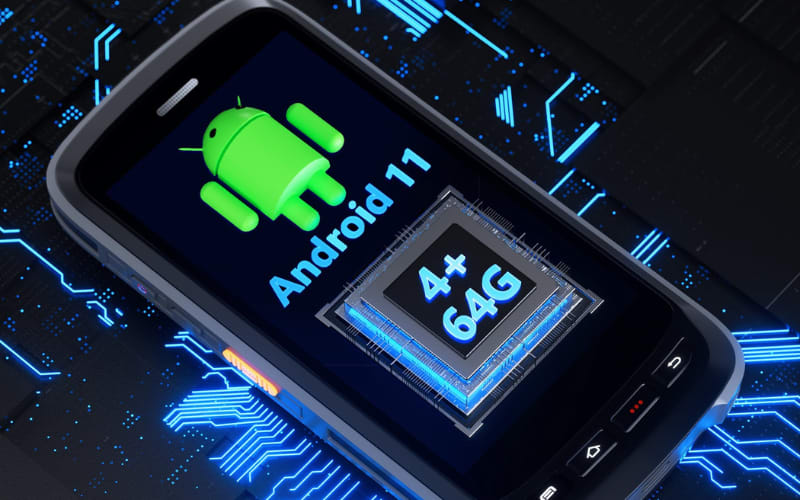
For example, Tera 1600 suits retail and office use, Tera 8300Pro handles industrial DPM codes, and Tera P161 or P400 mobile computers are perfect for Android-based workflows.
Compatibility isn’t just a feature—it’s the key to a smoother workflow. When your scanner, device, and software align, scanning becomes effortless every time.
Make Compatibility One Less Thing to Worry About
Compatibility shouldn’t slow you down. Whether you’re scanning at checkout, managing stock, or running deliveries, your tools should simply connect and work.
Tera barcode scanners and mobile computers are designed for real-world flexibility—compatible with Android, iOS, Windows, and major POS systems right out of the box. With Bluetooth, USB, and 2.4G modes, you can switch devices or environments without setup stress or extra drivers.
If you’re ready to stop troubleshooting and start scanning, explore Tera’s full range of barcode scanners. Find one that fits your workflow—and enjoy smooth, reliable compatibility every day.